Figure List
The figure list contains a listing of all figures in your Project.
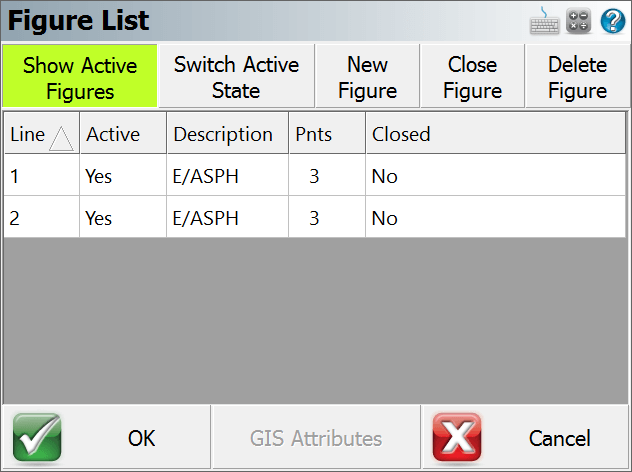
Line Column
This is the group id assigned to the figure. Refer to the Active Linework topic for more information.
Active Column
If the figure is active, you will see the word YES. To make a figure not active, press the Switch Active State button.
Description Column
This is the name of your figure which will usually match the description of the first point that the figure is connected to.
Points Column
This is the total number of points that the figure is connected to.
Closed Column
If you closed the figure you will see the word Yes.
Show Active Figures
When this is selected (default setting) all of your active figures will be listed. You can select a figure that you would like to work on simply by selecting it in the list and pressing the OK button. If this is turned off, then all the figures in the Project will be displayed.
Switch Active State
Use this to change the status of a figure to "finished". When this is done, it will no longer be displayed in the figure list of the Show Active Figures button is on. Once a figure is switched to a not active state, nothing can be added to it.
Figures that are not active, can be made active again simply by selecting the figure you want to use and pressing the Switch State button.
New Figure
Use this to create a new figure in the figure list.
Close Figure
Use this to close a figure so it will close back to the starting point.
Delete Figure
Use this to delete a figure that you have highlighted in the list. You can delete figures that are flagged as active, or not active. Review the delete figures topic for more info on deleting.