Draw Option Defaults
To setup draw option defaults you need to own a copy of MicroSurvey CAD or inCAD. From within MicroSurvey CAD or inCAD you can use the AutoMap editor to set default draw settings for each Description in the MicroSurvey CAD or inCAD AutoMap Library. When this library is copied to your collector, selecting a Description will choose the correct FieldGenius Draw option for Active Linework in FieldGenius.
Lines
Choose the following in your desktop AutoMap library editor to set the draw default for FieldGenius to Lines.
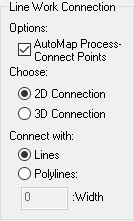
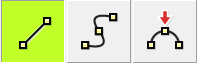
In FieldGenius when the description is selected, the line toggle will be automatically turned on.
As shown below, the line toggle has been automatically turned on when the E/ASPH description was selected from the list.
Curvy Lines
Choose the following to set the draw default for FieldGenius to Curvy Lines
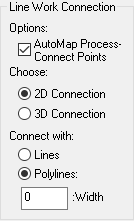
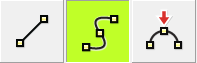
In FieldGenius when the description is selected, the curvy toggle will be automatically turned on.
As shown below, the curvy toggle has been automatically turned on when the E/ASPH description was selected from the list.
None
Choose the following to set the draw default for FieldGenius to None
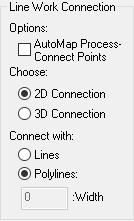
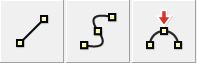
As shown below, when the HUB description was selected, all line connectivity toggles are turned off.
Notes:
The 2D Connection and 3D Connection settings do not affect FieldGenius, we only make use of these settings as defaults in MicroSurvey CAD or inCAD. All FieldGenius figures are 3D. With FieldGenius data imported to MicroSurvey CAD or inCAD, there is no need to process AutoMap connections as FieldGenius figures are drawn automatically. For more details on the AutoMap Library, see your MicroSurvey CAD or inCAD Help System.