Advanced Template Editing
Advanced Zone Edit – Widening Example
In this example we will use the template example from the Template section. We want to widen the template at a specific station and change the grade of the template.
The original zone 3 has a constant elevation and width from beginning to end, but we want to modify it to include a section that has a slope and width difference.
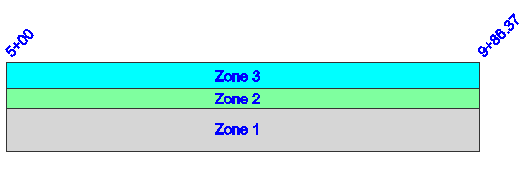
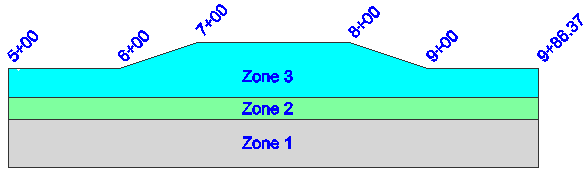
The new zone 3 will look like the following example. From station 6+00 to 7+00 the width of the zone transitions from a width of 5' to 10' and the elevation transitions from 0 down to -2'. Then from station 8+00 to 9+-00 it transitions back to the normal width and grade.
Slope Modifier
First you need to highlight the zone that you want to add modifiers to.
Then select the Advanced Zone Edit command from the commands button. This will open the zone modifier screen for the zone. In our example, we'll be modifying zone 3 on the left side of the template.
To add slope modifiers, press the Slopes (#) button. From here you can press the Add button to add modifiers for the zone. The following table shows the information that would have been inputted.
You have to define if you are entering a relative vertical change, or want FieldGenius to compute it for you using a slope percent and horizontal distance for the zone. You can do this by selecting the Vert Type and set it to Vertical Distance or Slope.

Press Ok to save the modifiers.
Widths Modifier
First you need to highlight the zone that you want to add modifiers to.
Then select the Advanced Zone Edit command from the commands button. This will open the zone modifier screen for the zone. In our example, we'll be modifying zone 3 on the left side of the template.
To add width modifiers, press the Widths (#) button. From here you can press the Add button to add modifiers for the zone. The following table shows the information that would have been inputted.
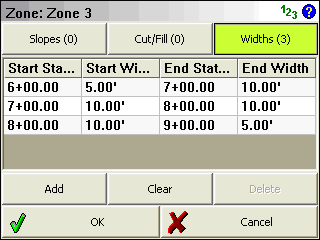
Press Ok to save the modifiers.
Checking Width Modifiers
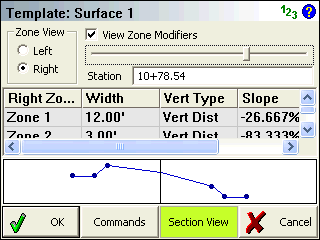
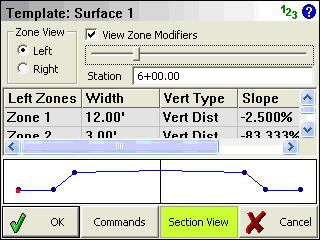
At any time from the Template editor you can confirm that your modifiers are correct by using the station slider.
If we use our example from above, and want to preview the template at station 6+00, you can do so by entering it in the station field.
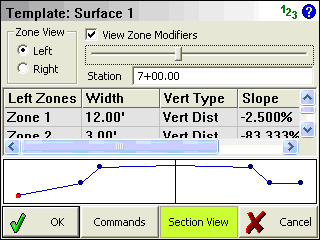
If we check station 7+00 you will see that the zone now extends further and drops down.
Advanced Zone Editing – Superelevation
In this example we will use the template example from the Template section. We want to add superelevation data to our template so it can be staked in the field. FieldGenius cannot calculate surperelevations; you need to know what delta z or slope the zone should be transitioning for your superelevation section.
To do this we will be adding slope modifiers to Zone 1 L and Zone 1 R.
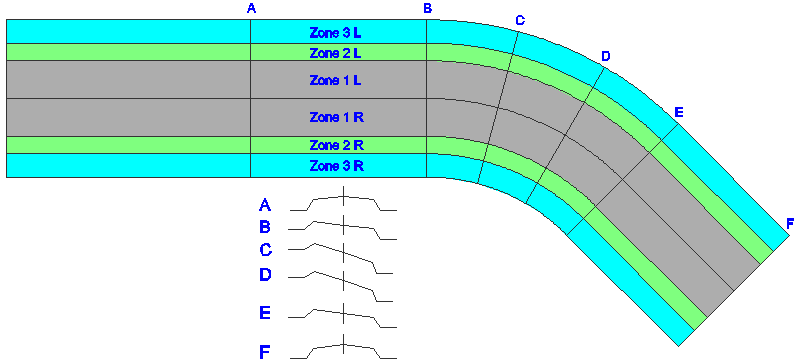
Labels A to F show the stations where we will be adding modifiers to modify the template so the road transitions from normal crown to full superelevation and back. Note: In this example the superelevation is exaggerated for ease of viewing.
Slope Modifier
First you need to highlight the zone that you want to add modifiers to.
Then select the Advanced Zone Edit command from the commands button. This will open the zone modifier screen for the zone. In our example, we'll be modifying zone 3 on the left side of the template.
To add slope modifiers, press the Slopes (#) button. From here you can press the Add button to add modifiers for the zone. The following table shows the information that would have been inputted.
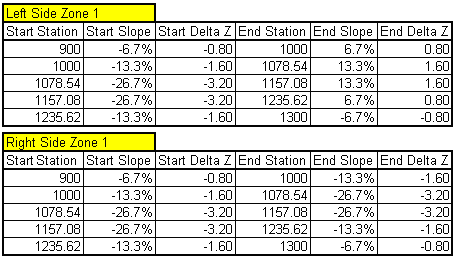
Press Ok to save the modifiers.
Checking Width Modifiers
At any time from the Template editor you can confirm that your modifiers are correct by using the station slider.
If we use our example from above, and want to preview the template at station 9+00, you can do so by entering it in the station field. You will see at this station we have a typical road cross section.
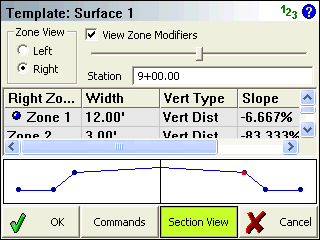
If we check station 10+78.54 you will see that we are at the full superelevation section.